Getting Started with ServiceNow Messenger
Install Messenger for ServiceNow using the update set and configure authentication to start sending SMS from your workflows.
1. Install the Update Set
Download the latest update set from the Downloads page and install it in your ServiceNow instance:
- Download the latest update set XML file
- In ServiceNow, open Retrieved Update Sets in System Update Sets and select Import Update Set from XML
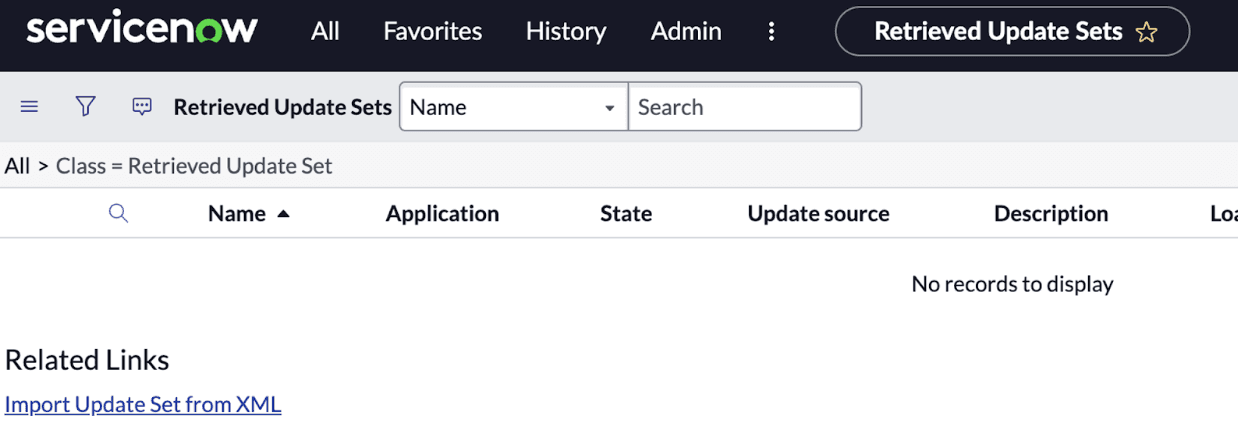
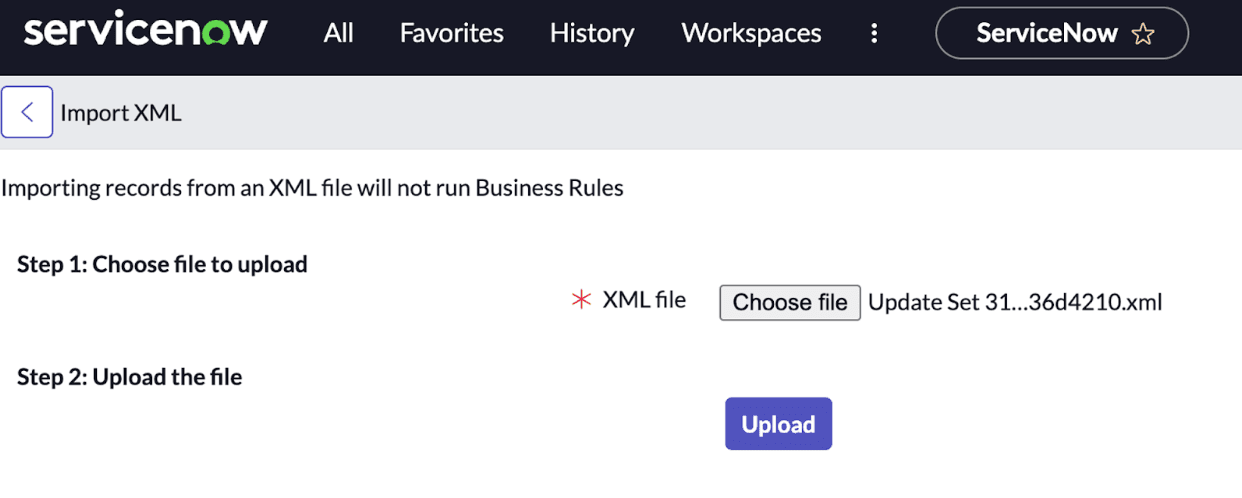
- Choose the downloaded XML update set and upload
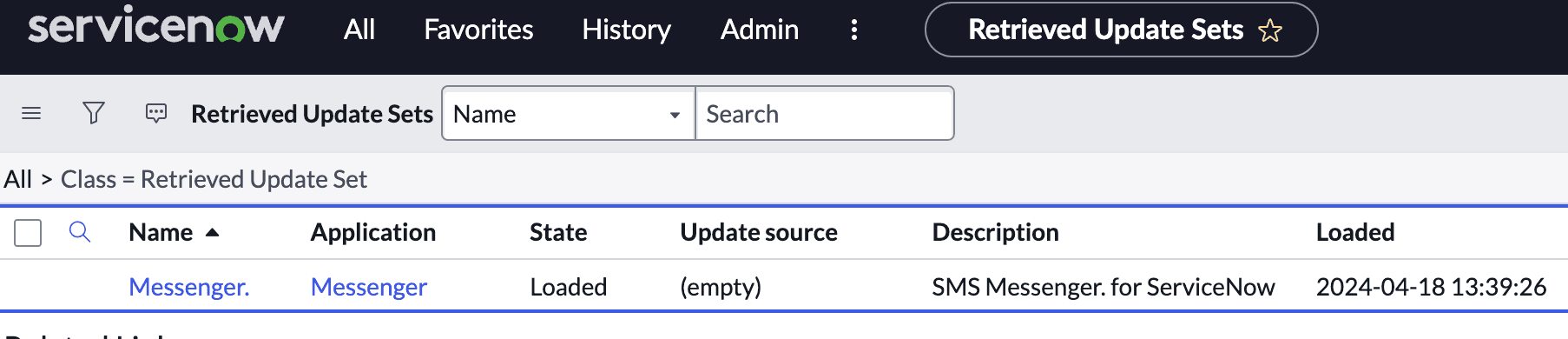
- Open the uploaded update set
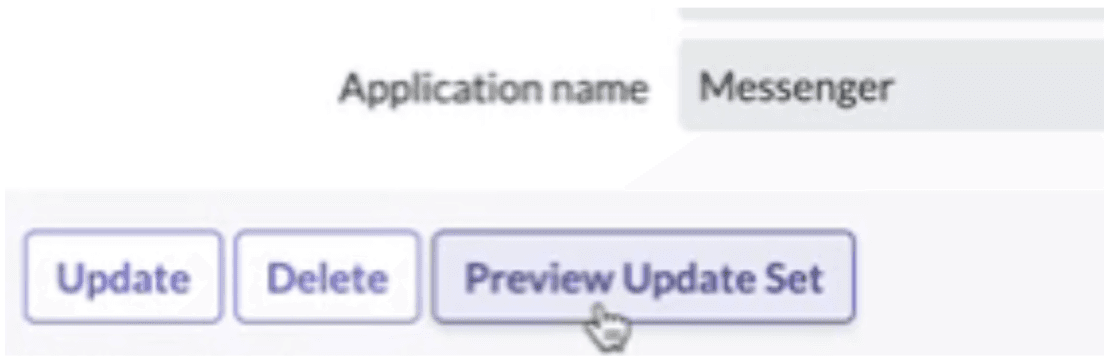
- Click to Preview Update Set
- Select all "errors" to accept the import of missing references
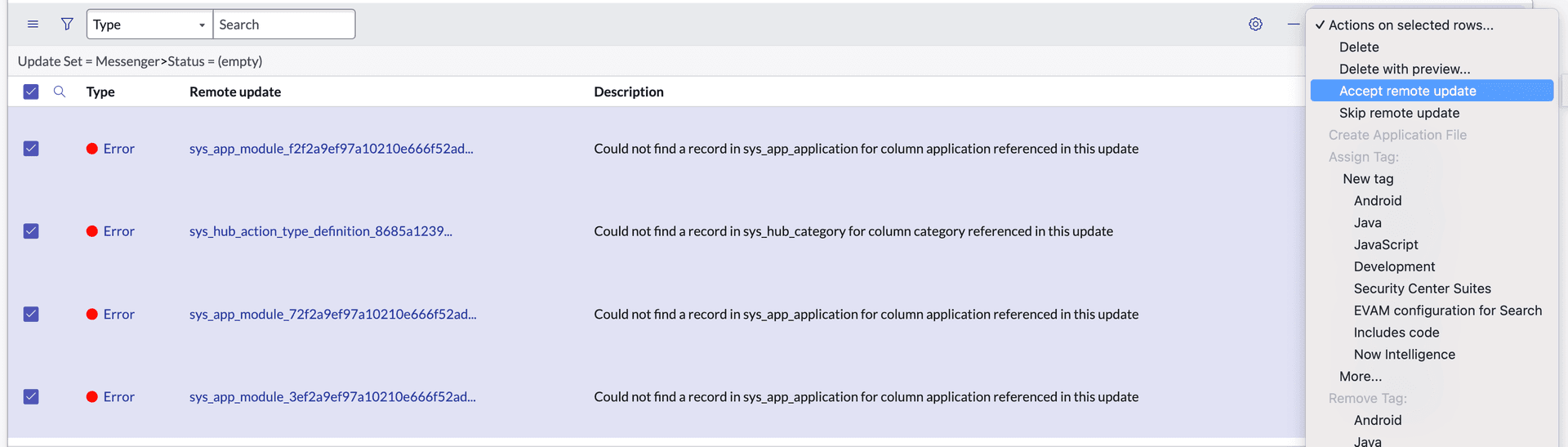
- Confirm update

- Build your workflows! 🎉
2. Authentication
To authorize the integration, you need a set of basic auth credentials (API key and API secret) from the Hub.
Generate API Credentials
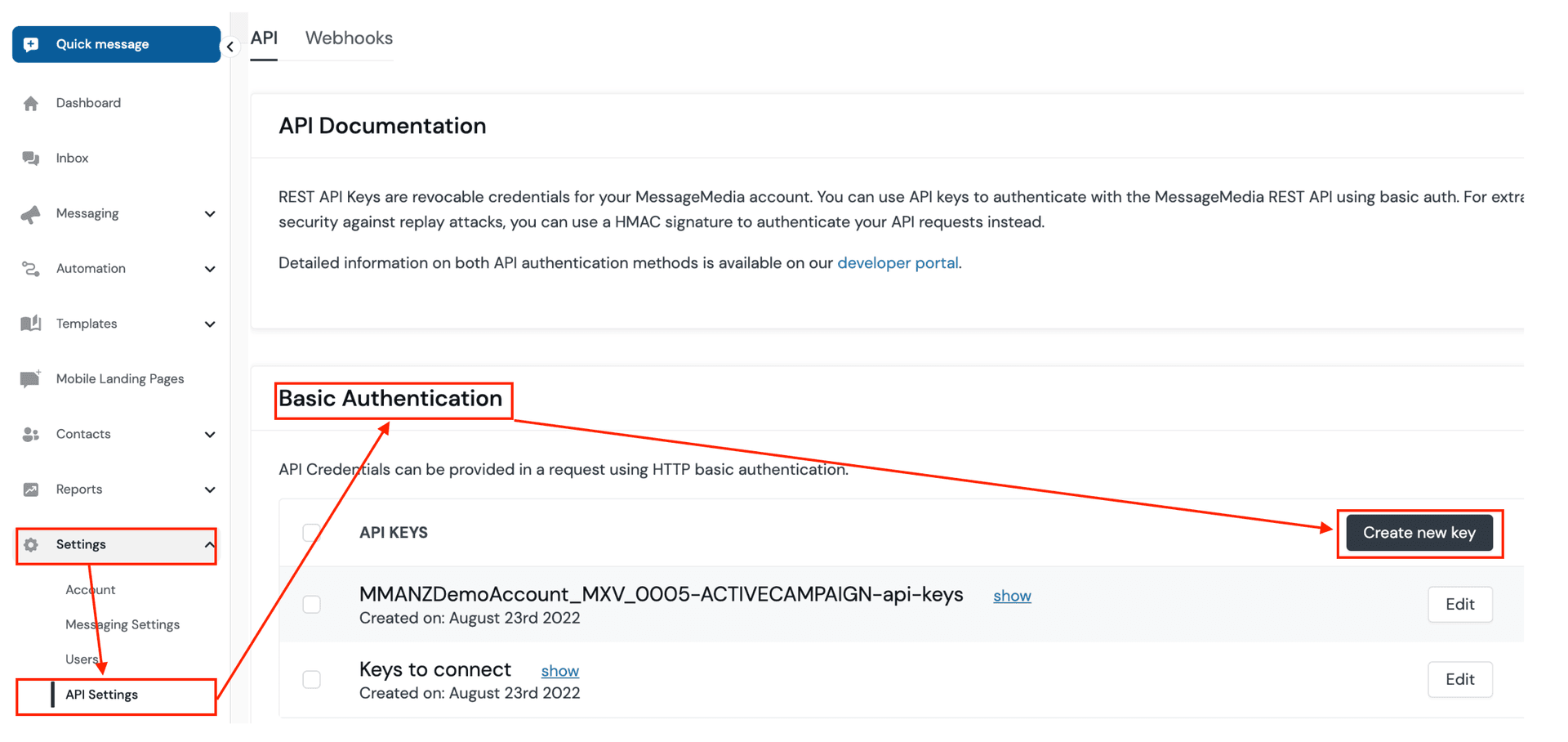
Navigate to Settings → API Settings in the Hub or follow this link to go straight there. On this page, create a new key in the basic authentication section.
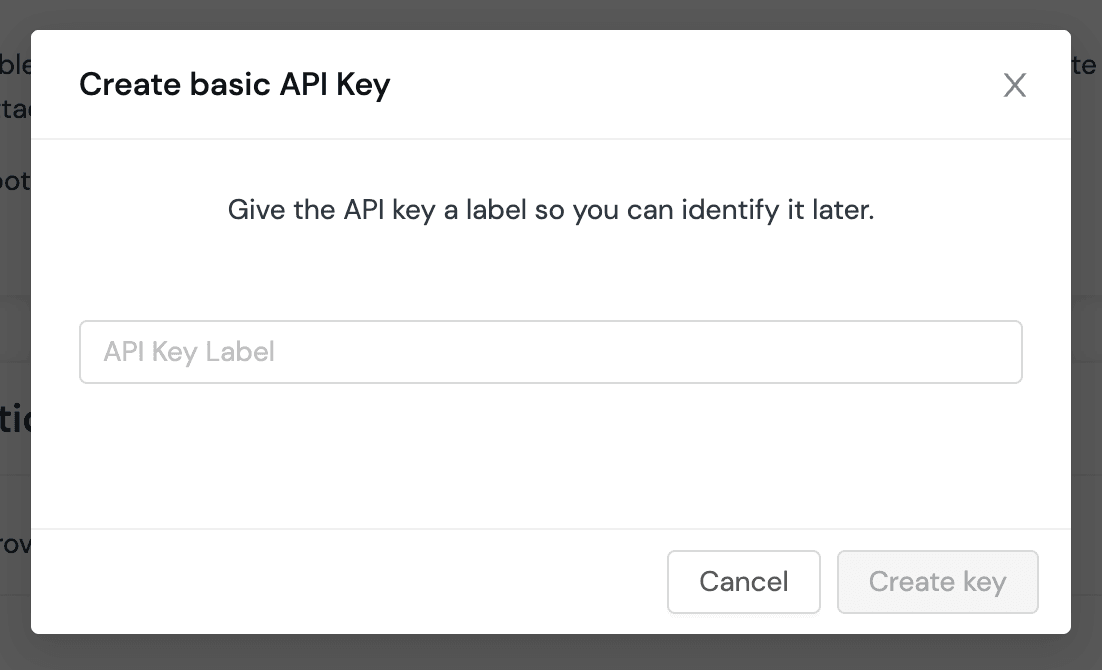
Enter an API key name (e.g., ServiceNow) and click Create key.
Now with your api_key and api_secret in hand, you can configure ServiceNow to use these credentials.
Credential Rotation
Why Rotate Credentials?
Regularly rotating your API key and secret is a recommended security practice. This reduces the risk of unauthorized access if credentials are ever exposed. We recommend rotating credentials at least every 90 days, or immediately if you suspect they may have been compromised.
How to Rotate Credentials
- Generate New Credentials:
- Go to Settings → API Settings in the Hub or use this link.
- Create a new key in the basic authentication section. Do not delete the old key yet.
- Update ServiceNow Configuration:
- Replace the existing API key and secret in your ServiceNow integration with the new values.
- Use the encoding tool below to generate the new encoded token for outbound SMS.
- Test the Integration:
- Send a test message to confirm the new credentials are working.
- Remove Old Credentials:
- Once you have confirmed the new credentials are working, delete the old API key and secret from the Hub.
Tip: Always keep your credentials secure and never share them in unsecured channels.
Outbound SMS Authentication
The API key and secret need to be encoded to a token. Use the tool below to encode your key and secret. This encoded value will be needed in the spoke action later.
Receiving Inbound SMS new in v1.1
In ServiceNow, search the application menu for Messenger and you will see two menu items. Select Environment Registration.
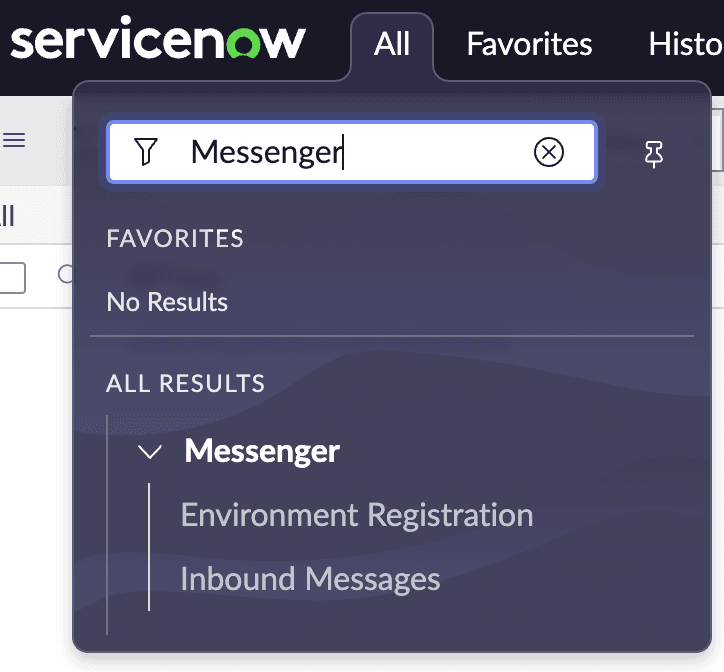
Create a new record entering the API key and secret generated for the integration and save this. This will configure your account and environment for receiving inbound messages.
Next Steps
You're all set! Here's what you can do next:
- Learn how to use Flow Designer actions to send SMS
- Explore scripting examples for advanced use cases
- Set up two-way messaging to capture inbound SMS
- Configure reporting to track usage